![PrintReleaf-2023-Horizontal-RGB.svg]](https://help.printreleaf.com/hubfs/PrintReleaf-2023-Horizontal-RGB.svg)
Before you begin..
To use the PrintReleaf/Vantage Online integration, you must request a specific API endpoint to be configured against your Vantage Online database for the PrintReleaf integration. This gives PrintReleaf limited, read-only access to your data. You can make this request in the Vantage Online support portal. Vantage Online will provide you with the credentials below necessary to register your Vantage Online server in PrintReleaf.
Credentials Required
You will need the following credentials to register your Vantage Online server in PrintReleaf:
- Username & Password: API credentials, provided by Vantage Online.
Part I: Create a Vantage Online server in PrintReleaf
-
Click Integrations in the main menu. Locate Vantage Online tile and click +Add Server.
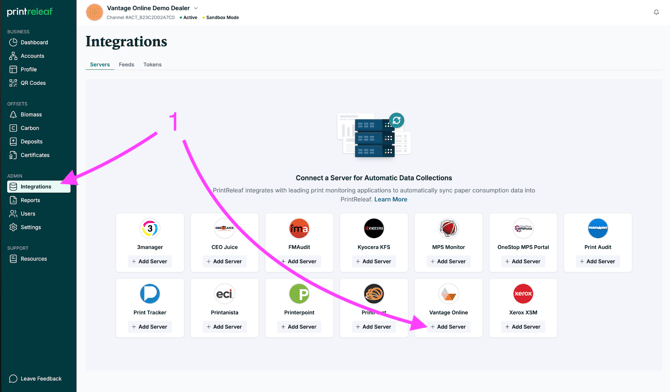
-
Enter your Vantage Online Username and Password.
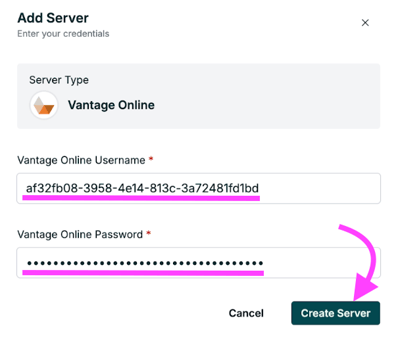
-
Your Vantage Online Server has been successfully created
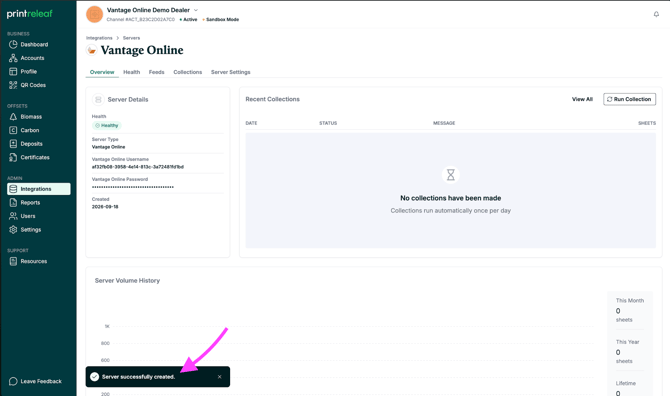
If you want to add several customers at once, please email us at support@printreleaf.com to let us know your server is set up. We will prepare a list of your Vantage Online customers and send it to you in a spreadsheet. From there, you'll identify which customers you'd like to add to PrintReleaf, send that list back to us, and we'll create the accounts and complete the integrations on your behalf.
If you've already completed your initial setup and are looking to add customers one at a time, continue to Parts II & III below.
Part II: Create a customer Account
-
Navigate to Accounts from the main menu, then click +Add an Account.
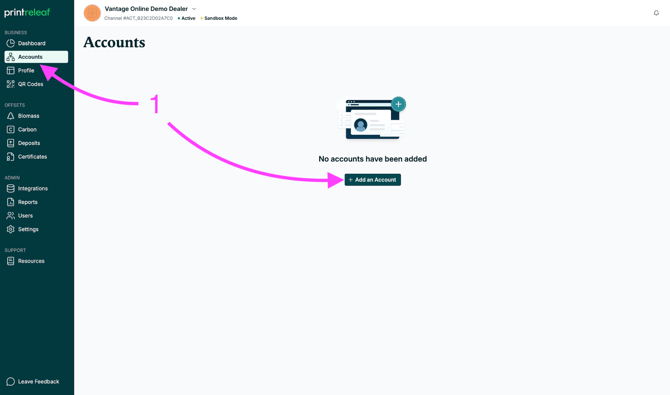
-
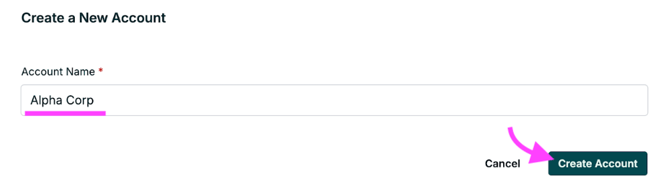
Provide a Name for the Customer Account, then click Create Account.
-
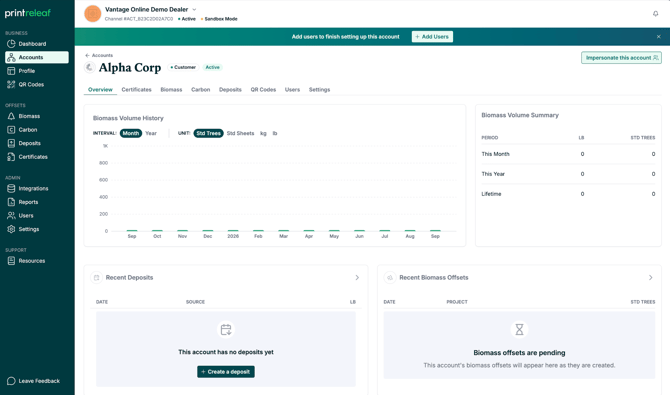
Your Customer Account has been successfully created
Part III: Create a Vantage Online Customer feed
-
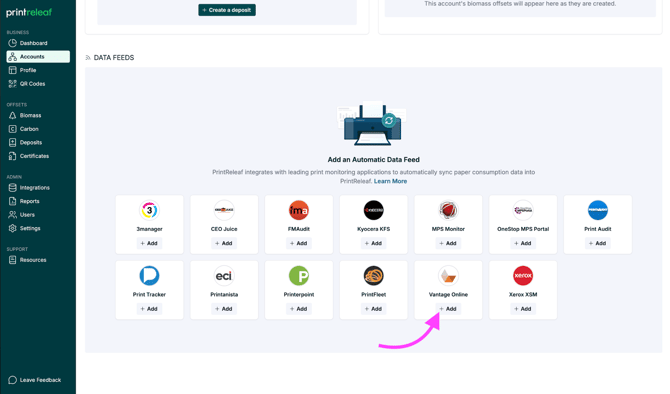
Scroll down the new Account overview screen (viewing at Channel level) to the Data Feeds section, locate the Vantage Online tile, and click +Add.
-
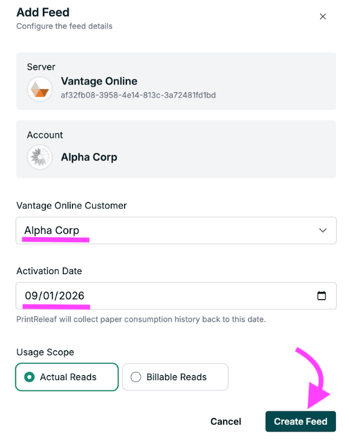
Select the Vantage Online Customer from the dropdown menu. Set the Activation Date. Set the Usage Scope. To complete, click the Create Feed button.
-
Your Customer Feed has been successfully created.
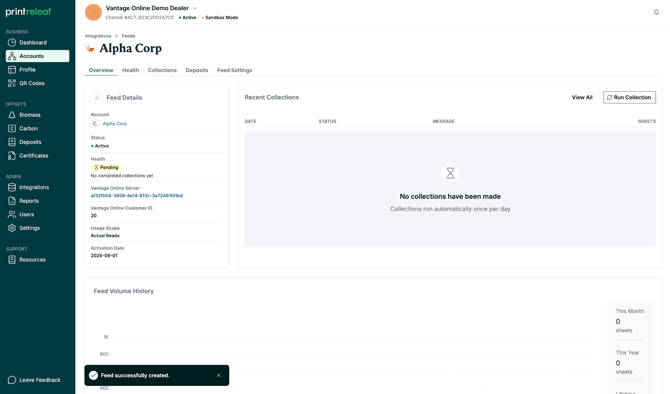
What happens next? All Vantage Online data is tied to invoices, so new data (actual or billable) syncs over within 24 hours of when a new invoice is created in VO.
If you run into any issues or have questions, please contact support@printreleaf.com for help.
Frequently Asked Questions
How are credit notes treated?
PrintReleaf does not account for credit notes in Vantage Online data as these are typically for small amounts and for paper that was actually consumed. Automatically adjusting historical data in PrintReleaf to account for credit notes in arrears is not possible because prior periods are often already closed with offset certificates already issued to the customer for the original volume.
For exceptional cases where a large credit note causes the data synced to PrintReleaf to vary greatly from the data in Vantage Online, we will handle these on a case-by-case basis. Please contact support@printreleaf.com to request an adjustment.