![PrintReleaf-2023-Horizontal-RGB.svg]](https://help.printreleaf.com/hubfs/PrintReleaf-2023-Horizontal-RGB.svg)
Before you begin, make sure you have:
-
Printerpoint API Token: If you need assistance obtaining your API token, please reach out to your Printerpoint representative for support.
Part I: Adding your Printerpoint Server to PrintReleaf
This will establish a live connection between Printerpoint and PrintReleaf
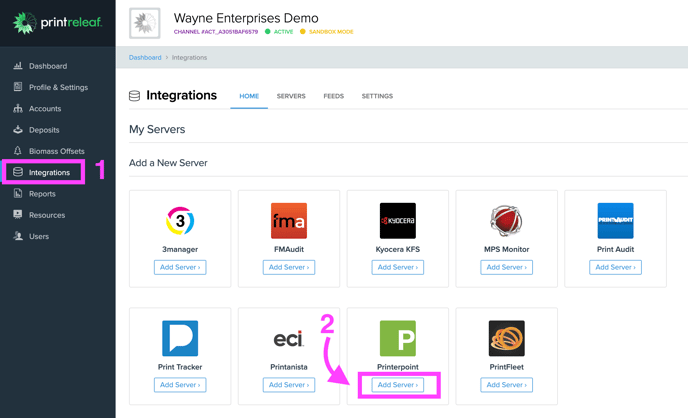
1. In PrintReleaf, navigate to Integrations
2. Click 'Add Server' under Printerpoint
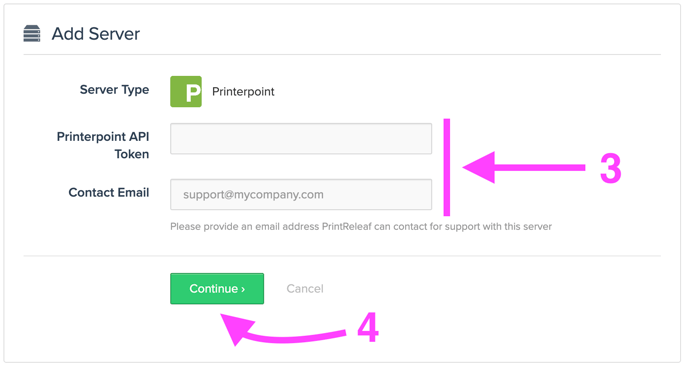
3. Enter your Printerpoint API Token and Contact Email
4. Click Continue to save
Part II: Create a new PrintReleaf Account for the customer
Return to your PrintReleaf Dashboard:
1. Click on Accounts
2. Select 'Add Account' 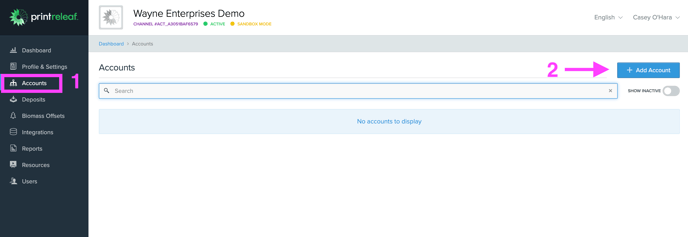 3. Input your preferred Account Name then click 'Continue'
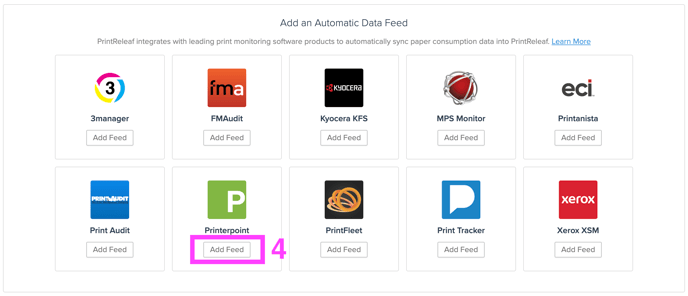
4. On the detail page of the newly-created account, scroll to the Data Feeds section and click 'Add Feed' under Printerpoint
5. Select the Printerpoint customer from the dropdown menu.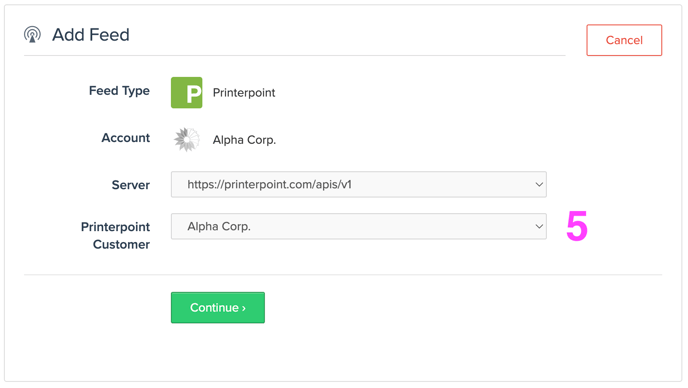
6. Click 'Continue' to save the feed.