![PrintReleaf-2023-Horizontal-RGB.svg]](https://help.printreleaf.com/hubfs/PrintReleaf-2023-Horizontal-RGB.svg)
Before you begin..
This process works best for Managed Print Providers entering print volume for greater than ~10 clients.
Uploading volume for less than 10 clients? Consider following the steps in our How to Manually Enter Customer Volume article.
-
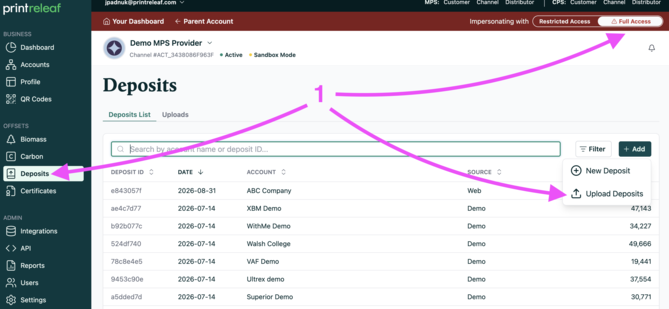
Ensure you're viewing as a Full Acccess user, click Deposits and then Upload Deposits
-
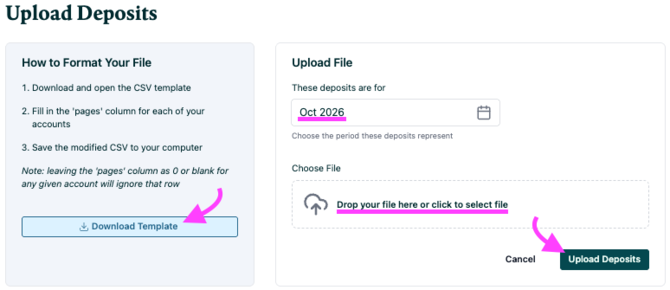
Click Download Template, then follow the instructions for how to format your file. Choose the date that represents when this deposit occurred, upload the file in the Choose File section, click Upload Deposit to complete.
-
Your file has been successfully uploaded.
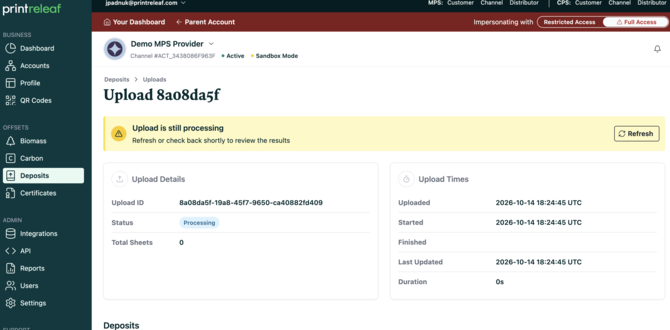
Note: Your deposit will show as Pending until billing is processed, typically on the 10th of the following month. Once processed, it moves to Certified and is added to the customer’s official lifetime offset certificate.